Installing the Accutroll NMEA2000 WiFi Gateway
Complete installation instructions for the Accutroll NMEA2000 WiFi Gateway.
Table of contents
- Before You Begin
- Step 1: Install the Accutroll NMEA2000 WiFi Gateway
- Step 2: Discover and Add the Gateway to the Accutroll App
- Step 3: Device Linking
- Step 4: Speed Source Selection
- Step 5: Verify Speed Feedback
- Next Steps
Before You Begin
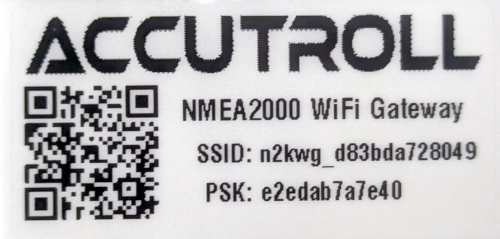
Each Accutroll device is shipped with a decal containing a QR code that encodes the device’s unique network SSID and passphrase. Do not discard this decal. Save it in your glove box or affix it somewhere convenient for future scanning. Each device has unique network parameters permanently marked on it, and the decal is a duplicate of this QR code. Since accessing the devices after installation can be inconvenient, the decals are provided so you can easily rescan the QR code if you ever need to re-add the devices to your app.
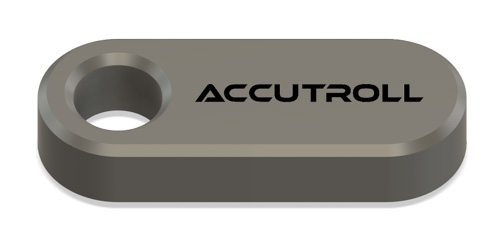
Each Accutroll device is shipped with a special keychain with an embedded magnet. It is recommended that this keychain be added to your boat’s keyring. The keychain is used to factory reset the device. Since each module is completely overmolded, factory reset can be triggered by placing the magnet near the hall effect sensor on the device. The green status LED will blink in a specific pattern indicating the reset is in process. See the troubleshooting section for each device for more specific detail.
Prerequisites
It is assumed that there is already an existing NMEA2000 backbone installed on your boat with an MFD or NMEA2000-compatible paddle wheel sensor connected to the backbone and one available port for the Accutroll Gateway. The Accutroll Gateway uses GPS speed published by the MFD or speed through water published by the paddle wheel sensor to provide feedback to the throttle controller. Alternative GPS speed sources could come from a dedicated GPS or Autopilot on the NMEA2000 bus.
Required:
- Accutroll app installed on your mobile device
- Existing NMEA2000 backbone with available T-connector port
- Speed source device (MFD, GPS, or paddle wheel sensor) connected to NMEA2000 bus
- Accutroll TCM already installed (see TCM Installation Guide)
Install the Accutroll App
If you haven’t already, download and install the Accutroll app from the App Store (iOS) or Google Play Store (Android).


Step 1: Install the Accutroll NMEA2000 WiFi Gateway
The Accutroll NMEA2000 Gateway uses 2.4GHz WiFi signal to communicate with the app and Throttle Control Module. While 2.4GHz is quite robust, especially within the short range required on a boat, if you find you have poor connectivity, it may be necessary to find an alternate location that improves the signal strength.
- Identify a location to mount the Gateway that is not completely obstructed or too close to interference-producing components
- If needed, use an NMEA2000 extension cable if the mounting location requires a longer distance to an available port on the NMEA2000 backbone
- Connect the Gateway to the NMEA2000 backbone using an available T-connector
DO NOT MOUNT THE GATEWAY YET with the provided screws - you will need to access the QR code on the back of the device.
Step 2: Discover and Add the Gateway to the Accutroll App
Power On and Verify
- Ensure the NMEA2000 bus is powered
- Turn on any speed source devices (MFD, GPS, paddle wheel sensor, etc)
- If using an MFD as a speed source, it must be fully booted
- Verify the red LED on the Gateway is illuminated, indicating it is powered
Add the Accutroll Gateway to the App
- From the device list view in the Accutroll app, click the + button to add a new device
- Scan the QR code on the back of the Gateway
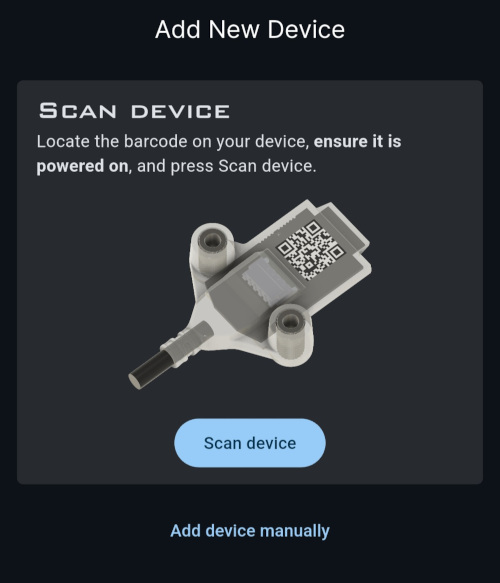
- The app will automatically connect to and discover the Gateway
- Once discovered, click Save device profiles to save the Gateway to the device list
If a firmware update is available for the Gateway, it will be indicated by a blue badge. Click it and follow the prompts to update the firmware.
Now you can mount the Gateway permanently using the provided screws.
Step 3: Device Linking
Accutroll devices use WiFi radios to wirelessly communicate. For devices to communicate, they must be on the same network. The app will automatically help you link the devices by configuring their networks appropriately.
- The app should automatically suggest linking the TCM with the Gateway
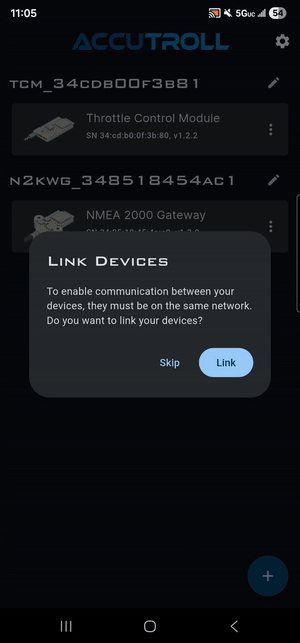
- Allow the app to link the devices when prompted
- Wait for the linking process to complete
Step 4: Speed Source Selection
- Once the Gateway and TCM are linked, the Gateway will automatically attempt to discover speed sources available on the NMEA2000 bus
- The app will display any discovered speed sources
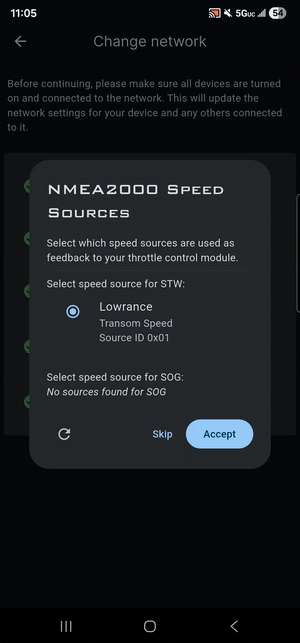
- If more than one speed source is found, select which speed source you would like to use as feedback and click Accept
If no speed sources are discovered, ensure devices such as your MFD are powered on and fully booted. You can click Retry to scan for speed sources again.
Step 5: Verify Speed Feedback
- From the Accutroll app device list view, tap the TCM device tile to launch the throttle controller’s user interface
- Verify that the speed panel now displays in the user interface
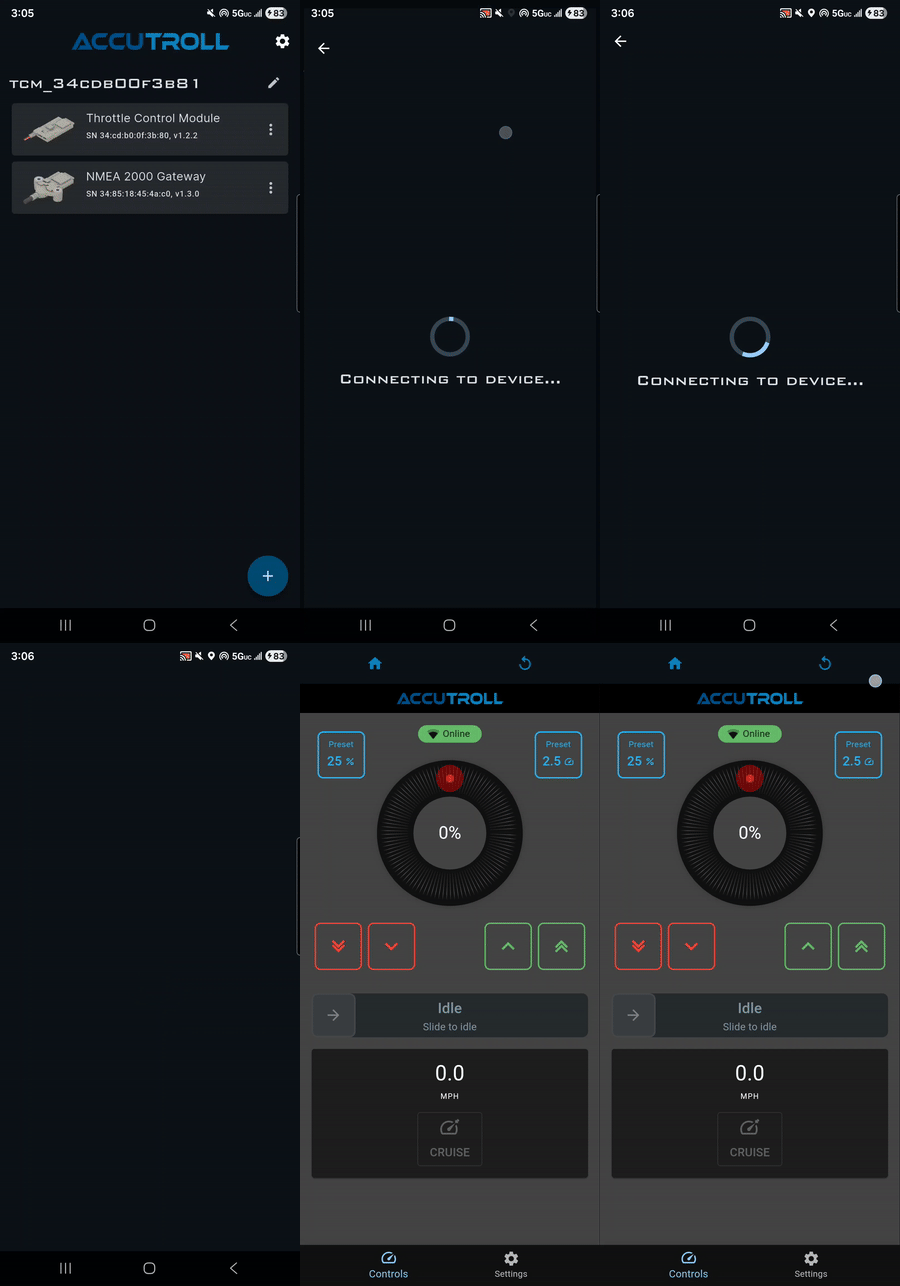
Installation Complete!
Your Accutroll NMEA2000 WiFi Gateway is now fully installed and configured. Your system now has speed feedback enabled for cruise control features.
Next Steps
Need Help?
- Email Support: support@accutroll.com
- Contact Form: accutroll.com/pages/contact