QR Code Scanning Issues
Troubleshooting guide for scanning device QR codes with the Accutroll app.
Table of contents
- QR Code Not Scanning or Not Recognized
- QR Code Difficult to Scan in Low Light
- QR Code Label Unreadable or Inaccessible
- Still Having Issues?
QR Code Not Scanning or Not Recognized
Problem
You’re trying to scan a device QR code but it’s not working or not being recognized.
Common Cause: Using the Wrong App
You must scan the QR code using the Accutroll app itself, NOT your phone’s built-in camera app.
Many users attempt to scan the QR code using their phone’s native camera application. While this may open a website or show some information, it will not add the device to your Accutroll app.
Solution: Scan Using the Accutroll App
To properly add a new device:
- Open the Accutroll app
- Tap the + button in the bottom right corner of the device list view
- Select “Add New Device”
- Tap “Scan Device”
- Point the camera at the QR code on your Accutroll device
- Wait for the app to recognize and decode the QR code
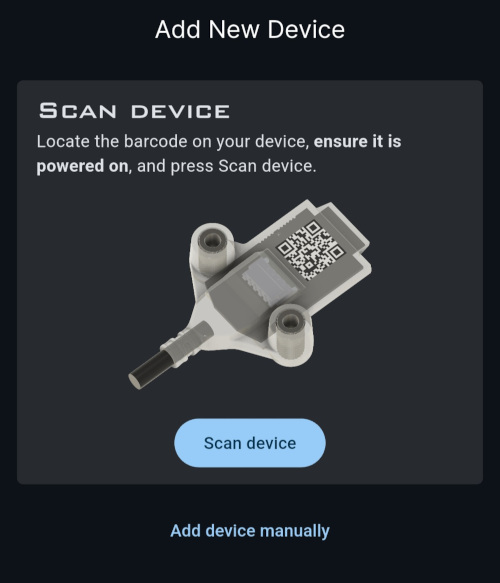
The QR code contains unique network credentials for your specific device. Scanning it with the Accutroll app allows the app to automatically connect to and configure the device.
QR Code Difficult to Scan in Low Light
Problem
The app’s camera is having trouble recognizing or decoding the QR code, especially in dim conditions under the cowling or in darker environments.
Solution: Use the Built-in Flashlight
The Accutroll app includes a flashlight feature to help with scanning in low-light conditions:
- Open the Accutroll app and navigate to the scan view (+ button → Add New Device → Scan Device)
- Look for the flashlight icon in the upper right corner of the camera view
- Tap the flashlight icon to activate your phone’s camera light
- Point the illuminated camera at the QR code
Using the flashlight dramatically improves scan success in dark environments such as under the motor cowling, in storage compartments, or during evening installations.
Additional Tips for Successful Scanning
- Hold steady - Keep your phone steady and allow the camera to focus
- Proper distance - Position your phone 4-8 inches from the QR code
- Avoid glare - If using the flashlight, angle the phone slightly to avoid glare reflecting off the label
- Clean the label - Make sure the QR code label is clean and free of dirt, water droplets, or scratches
- Good lighting - If possible, move to a better-lit area or use an external light source
QR Code Label Unreadable or Inaccessible
Problem
The QR code label on your device is damaged, scratched, faded, or inaccessible.
Solution: Use the Backup Decal
Each Accutroll device ships with a backup decal containing the same QR code. This decal is provided specifically for situations where the device label becomes damaged or inaccessible (after installation).
If you still have the backup decal:
- Retrieve the backup decal (check your glove box, documentation, or wherever you stored it)
- Scan the decal using the Accutroll app following the instructions above
Still Having Issues?
If you’re still unable to scan your device QR code after trying these solutions:
Contact Support
Our support team can walk you through the scanning process or provide alternative setup methods.
- Email: support@accutroll.com
- Phone: 206.705.3739
- Contact Form: accutroll.com/pages/contact